Automatic Script for SSH Command and SFTP Download In Git Bash

Here’s a script I wrote today to automatically execute a command over SSH using Putty’s PLINK and subsequently download a file using Putty’s PSFTP from a remote Linux host.

My exact use case is using this to execute a remote command that pulls a file from a Docker container to a temp directory. Then I download that file to my local Windows computer.

This pairs well with another blog post I wrote that allows you to automatically set up a public/private key pair and simply copy paste to a notepad located at the below link.

https://garrett.dev/2019/06/13/bash-script-for-automatic-creation-and-generation-of-public-private-key-for-linux-server-login/

Automate everything – that’s my philosophy.

#Ensure nothing happens outside the directory this script is ran from
cd "$(dirname "$0")"
SCRIPT_DIRECTORY=$(pwd)

REMOTE_HOSTNAME="hostname.com"
REMOTE_USERNAME="username"

REMOTE_COMMAND="bash -c 'cd /remoteDirectory/subDirectory/ && sh getFromDockerContainer.sh'"

#Double slash is for git bash path conversion compatibility
REMOTE_FILENAME="//remoteDirectory/subDirectory/file.extension"
LOCAL_FILENAME="$SCRIPT_DIRECTORY/file.extension"

LOCAL_PRIVATE_KEY="$SCRIPT_DIRECTORY/private_key.ppk"

PLINK="/c/Program Files/PuTTY/plink.exe"
PSFTP="/c/Program Files/PuTTY/psftp.exe"

rm -f "$LOCAL_FILENAME"

"$PLINK" -i "$LOCAL_PRIVATE_KEY" "$REMOTE_USERNAME@$REMOTE_HOSTNAME" "$REMOTE_COMMAND"

TEMP_BATCH_FILE="$SCRIPT_DIRECTORY/psftp.batch"

echo "get $REMOTE_FILENAME" > "$TEMP_BATCH_FILE"

"$PSFTP" -i "$LOCAL_PRIVATE_KEY" -b "$TEMP_BATCH_FILE" "$REMOTE_USERNAME@$REMOTE_HOSTNAME"

rm -f "$TEMP_BATCH_FILE"

Yahoo is Removing Free Auto-Forwarding – Here’s a Detailed POP3 Workaround

If you grew up naïve like me chances are you had a Yahoo email account at one time or another.

Times have changed – better options surfaced – maybe you decided to auto-forward all Yahoo mail to your Gmail address.

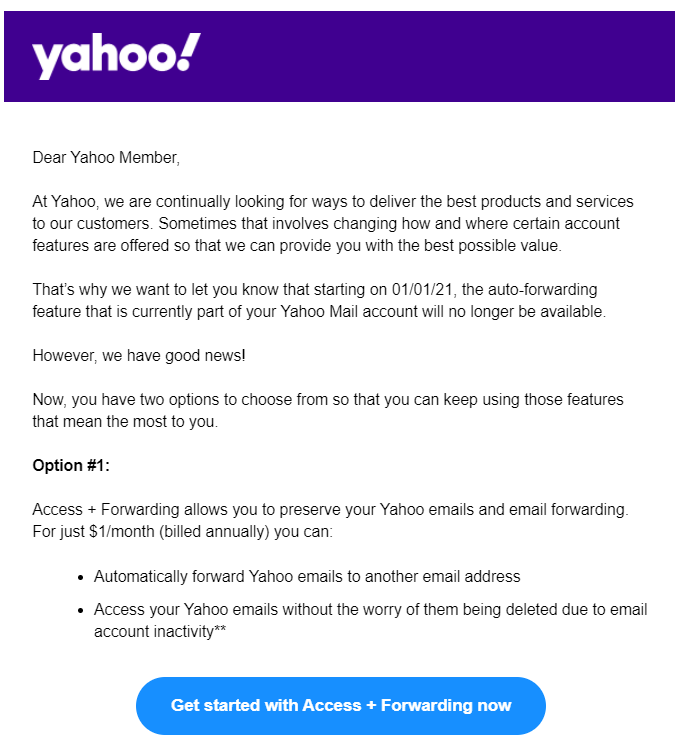
Well apparently this is going behind a paywall on 01/01/2021 – see below email screenshot.

The good news is – apparently they aren’t removing POP3 functionality and putting that behind a paywall.

So here is a sequence of steps to ensure your legacy email is still pumping into Gmail – if you have a few straggler accounts or newsletters that haven’t been properly changed over yet.

  1. Optional – probably do a security checkup on this account and ensure it has a strong password with a email backup in case Yahoo inevitably gets hacked again
  2. Disable Auto Forwarding in your Yahoo
  3. Generate an App Password for usage in Gmail POP3 settings
  4. Open this page for reference of Yahoo POP3 settings
  5. Plug your username and the aforementioned App Password in from Step 3

Batch – One Way Directory Sync

Have had a need to write this script for a while and finally took the time to do it today.

As a rule of thumb, I have an extreme distrust of the Windows file copy/paste functionality when it comes to deep directory structures.

It only gets worse when you add in network shares, so cue the paranoia.

Below is a script that has two examples:

  • Copy a single file from a remote directory to a local directory using robocopy
  • Copy an entire directory structure from remote to a local directory using robocopy

Both of these examples will only copy the delta between the two, so if the remote is newer or has a different file size the local representation will be purged of the differences and sync only the differences. In addition, it will log the entire transaction to a separate timestamped log file each time it is ran so we can analyze if there were transmission/permission errors.

This is helpful because network shares are prone to failure, especially over a VPN.

@echo off

REM #####################################################
REM #### Generate Timestamp String for Log Filename: ####
REM #####################################################

for /f "delims=" %%a in ('wmic OS Get localdatetime ^| find "."') do set VARIABLE_DATETIME=%%a
set VARIABLE_YEAR=%VARIABLE_DATETIME:~0,4%
set VARIABLE_MONTH=%VARIABLE_DATETIME:~4,2%
set VARIABLE_DAY=%VARIABLE_DATETIME:~6,2%
set VARIABLE_HOUR=%VARIABLE_DATETIME:~8,2%
set VARIABLE_MINUTE=%VARIABLE_DATETIME:~10,2%
set VARIABLE_SECOND=%VARIABLE_DATETIME:~12,2%
set VARIABLE_TIMESTAMP=%VARIABLE_YEAR%-%VARIABLE_MONTH%-%VARIABLE_DAY%_%VARIABLE_HOUR%-%VARIABLE_MINUTE%-%VARIABLE_SECOND%

REM ##############################################################
REM #### Parameters used in this script for robocopy command: ####
REM ##############################################################
REM
REM e - Copies subdirectories. This option automatically includes empty directories.
REM
REM z - Copies files in restartable mode.
REM
REM purge - Deletes destination files and directories that no longer exist in the source. Using this option with the /e option and a destination directory, allows the destination directory security settings to not be overwritten.
REM 
REM log+ - Writes the status output to the log file (appends the output to the existing log file).
REM 
REM tee - Writes to console window and log file at the same time instead of just the log file when using the log option

REM SCRIPT_DIRECTORY is defined as the directory that this script currently exists in
SET "SCRIPT_DIRECTORY=%~dp0"
SET "SCRIPT_DIRECTORY=%SCRIPT_DIRECTORY:~0,-1%"

echo "Working Directory = %SCRIPT_DIRECTORY%"

SET "VARIABLE_RETRY_WAIT=1"
echo "Wait Time for Retry = %VARIABLE_RETRY_WAIT%"

SET "VARIABLE_RETRY_COUNT=1000"
echo "Retry Count Before Giving Up = %VARIABLE_RETRY_COUNT%"

SET "VARIABLE_LOG=%SCRIPT_DIRECTORY%\sync_%VARIABLE_TIMESTAMP%.log"
echo "Log File = %VARIABLE_LOG%"

REM ############################################################
REM #### FILE - Getting specific_file_that_i_want.extension ####
REM ############################################################

SET "VARIABLE_LOCAL_DIR=%SCRIPT_DIRECTORY%\network-share-directory"
echo "Local Directory = %VARIABLE_LOCAL_DIR%"

SET "VARIABLE_REMOTE_DIR=\\remote-file-share\path\to\directory\to\sync\network-share-directory"
echo "Remote Directory = %VARIABLE_REMOTE_DIR%"

REM Example of copying a single file with robocopy
robocopy /e /Z /purge /W:%VARIABLE_RETRY_WAIT% ^
                      /r:%VARIABLE_RETRY_COUNT% ^
                      /tee ^
                      "/log+:%VARIABLE_LOG%" ^
                      "%VARIABLE_REMOTE_DIR%" ^
                      "%VARIABLE_LOCAL_DIR%" ^
                      "specific_file_that_i_want.extension"

REM #####################################################
REM #### DIRECTORY - Getting network-share-directory ####
REM #####################################################

SET "VARIABLE_LOCAL_DIR=%SCRIPT_DIRECTORY%\network-share-directory"
echo "Local Directory = %VARIABLE_LOCAL_DIR%"

SET "VARIABLE_REMOTE_DIR=\\remote-file-share\path\to\directory\to\sync\network-share-directory"
echo "Remote Directory = %VARIABLE_REMOTE_DIR%"

REM Example of copying a single file with robocopy
robocopy /e /Z /purge /W:%VARIABLE_RETRY_WAIT% ^
                      /r:%VARIABLE_RETRY_COUNT% ^
                      /tee ^
                      "/log+:%VARIABLE_LOG%" ^
                      "%VARIABLE_REMOTE_DIR%" ^
                      "%VARIABLE_LOCAL_DIR%"

pause					  
Docker – Bulk Stop and Remove Containers in Bash

Had a bunch of annoying no-name containers I needed to remove because forgot to add the “–rm” flag on my “docker run” commands used for debugging containers.

Below is a snippet that works in git-bash and normal linux bash environments for bulk deletion of containers based on their name matching the grep pipe.

#This pattern targets and removes the weirdly named ones docker generates if no name is provided
#
#Test it first to ensure it targets the right containers!! - first command will echo all the ones that will be removed
docker ps -a | grep -v ":" | grep "_" | awk '{print $1}' | xargs echo
docker ps -a | grep -v ":" | grep "_" | awk '{print $1}' | xargs docker stop
docker ps -a | grep -v ":" | grep "_" | awk '{print $1}' | xargs docker rm -v

#This pattern targets and removes the ones I personally created in bulk that had "test_" in the name
docker ps -a | grep "test_" | awk '{print $1}' | xargs docker stop
docker ps -a | grep "test_" | awk '{print $1}' | xargs docker rm -v

Bash – Find Replace whole line based on partial match

Using the below snippet you can find a matching string in a file and replace the entire line in the file instead of just the match.

This example should technically work cross platform with git-bash, multiple linux bash, etc. – will update post if there is a discrepancy.

#!/bin/bash

function misc_findReplace_wholeLine()
{
    VARIABLE_FIND="$1"
    VARIABLE_REPLACE="$2"
    VARIABLE_FILE="$3"

	echo "Finding: $VARIABLE_FIND"
	echo "Replacing With: $VARIABLE_REPLACE"
	echo "File to Operate On: $VARIABLE_FILE"

    sed -i "\@${VARIABLE_FIND}@c${VARIABLE_REPLACE}" "$VARIABLE_FILE"
}

#Ensure nothing happens outside the directory this script is ran from
cd "$(dirname "$0")"
SCRIPT_DIRECTORY=$(pwd)

MY_PROJECT_DIRECTORY="$SCRIPT_DIRECTORY/my-code-project"

###################################################################
#### FILE: my-code-project/my-sub-directory/file.properties  ####
###################################################################

FILE_TO_WORK_WITH="$MY_PROJECT_DIRECTORY/my-sub-directory/file.properties"

STRING_TO_FIND="host="
STRING_TO_REPLACE="host=localhost"

echo "#############################################"
echo "### Checking Before Variable Replacement: ###"
echo "#############################################"
echo ""
cat "$FILE_TO_WORK_WITH" | grep "$STRING_TO_FIND"
echo ""
echo "#############################################"


misc_findReplace_wholeLine "$STRING_TO_FIND" "$STRING_TO_REPLACE" "$FILE_TO_WORK_WITH" 

echo "############################################"
echo "### Checking After Variable Replacement: ###"
echo "############################################"
echo ""
cat "$FILE_TO_WORK_WITH" | grep "$STRING_TO_FIND"
echo ""
echo "#############################################"

Special thanks to user @stas-chernetski on Stack Overflow for providing the syntax example at the below link:

Oracle Linux 7 – Automatic Script for Restoration of EPEL Repo

Somehow in the past couple months Oracle has stopped shipping the reference for EPEL in their base image for Docker – oraclelinux:7-slim 

This caused an issue for some code I’d written and quite frankly annoyed the crap out of me considering they explicitly added a command in newer versions of their images that allows you to enable the repo without having to manually add it to a file.

So here’s what I did.

  1. I first looked for a current up to date mirror that contains all the yum repositories and their endpoints that are officially maintained by Oracle
  2. Inside the file if you search epel you will be presented with the following:
    • [ol7_developer_EPEL]
      name=Oracle Linux $releasever Development Packages ($basearch)
      baseurl=https://yum.oracle.com/repo/OracleLinux/OL7/developer_EPEL/$basearch/
      gpgkey=file:///etc/pki/rpm-gpg/RPM-GPG-KEY-oracle
      gpgcheck=1
      enabled=0
  3. What I did next was take this whole string and bake it into an “enable” script for bash, the script does the following:
    • Greps every file in /etc/yum.repos.d/ for the string “EPEL”
    • If TRUE, break from for loop and end script
    • If FALSE, write this copied string from above to it’s own file in “/etc/yum.repos.d/” as “oracle-epel.repo” and set appropriate permissions
#!/bin/bash

#Ensure nothing happens outside the directory this script is ran from
cd "$(dirname "$0")"
SCRIPT_DIRECTORY=$(pwd)

EPEL_FILE_CONTENTS='[ol7_developer_EPEL]
name=Oracle Linux $releasever Development Packages ($basearch)
baseurl=https://yum.oracle.com/repo/OracleLinux/OL7/developer_EPEL/$basearch/
gpgkey=file:///etc/pki/rpm-gpg/RPM-GPG-KEY-oracle
gpgcheck=1
enabled=1'

DIRECTORY_YUM_REPO_FILES='/etc/yum.repos.d'
EPEL_FILE_NAME="$DIRECTORY_YUM_REPO_FILES/oracle-epel.repo"
EPEL_FILE_OWNER='root:root'
EPEL_FILE_CHMOD='644'

function misc_stringInFile()
{
    STRING_TO_FIND="$1"
    FILE_TO_SEARCH="$2"

    if grep -iqF "$STRING_TO_FIND" "$FILE_TO_SEARCH";then
        echo "TRUE"
    else
        echo "FALSE"
    fi
}

function checkOracleRepoFiles()
{
    cd "$DIRECTORY_YUM_REPO_FILES"

    echo "DIRECTORY - $DIRECTORY_YUM_REPO_FILES - Checking if EPEL is contained within any of the files..."

    EPEL_IS_IN_FILE="FALSE"

    for VARIABLE_YUM_REPO_FILE in * ; do

        cd "$DIRECTORY_YUM_REPO_FILES"

        if [ -f "./$VARIABLE_YUM_REPO_FILE" ]; then

            echo "DIRECTORY - $DIRECTORY_YUM_REPO_FILES - FILE - $VARIABLE_YUM_REPO_FILE - Checking if EPEL is contained within..."

            EPEL_IS_IN_FILE=$(misc_stringInFile "EPEL" "$VARIABLE_YUM_REPO_FILE")

            if [ "$EPEL_IS_IN_FILE" = "TRUE" ]
            then
                echo "DIRECTORY - $DIRECTORY_YUM_REPO_FILES - FILE - $VARIABLE_YUM_REPO_FILE - TRUE - EPEL was detected..."
                break
            else
                echo "DIRECTORY - $DIRECTORY_YUM_REPO_FILES - FILE - $VARIABLE_YUM_REPO_FILE - FALSE - EPEL was not detected..."
            fi
        fi

    done

    if [ "$EPEL_IS_IN_FILE" = "FALSE" ]
    then
        echo "Adding EPEL Repository File since it wasn't detected in the Oracle Linux Image"
        echo "DIRECTORY - $DIRECTORY_YUM_REPO_FILES - FILE - $VARIABLE_YUM_REPO_FILE - FALSE - EPEL was not detected..."
        echo "$EPEL_FILE_CONTENTS" > "$EPEL_FILE_NAME"
        chmod $EPEL_FILE_CHMOD "$EPEL_FILE_NAME"
        chown $EPEL_FILE_OWNER "$EPEL_FILE_NAME"
    fi
}

checkOracleRepoFiles

Closing thoughts – seriously Oracle wtf, if you are going to have a command dedicated to enabling this repo like “yum-config-manager –enable ol7_developer_EPEL” how about we NOT remove the repo it references in future distributions or at the very bare minimum put a comment in one of the files under “/etc/yum.repos.d” saying, “hey we are removing this in future distributions” or something.

I’m sure there was an internal note or publication somewhere about this but damn if that didn’t annoy me to high heaven when I found out something broke because this was missing.

Ya’ll ignore me, I’m just whiny about this. It didn’t take me more than 30 minutes to an hour to find the problem and write a fix.

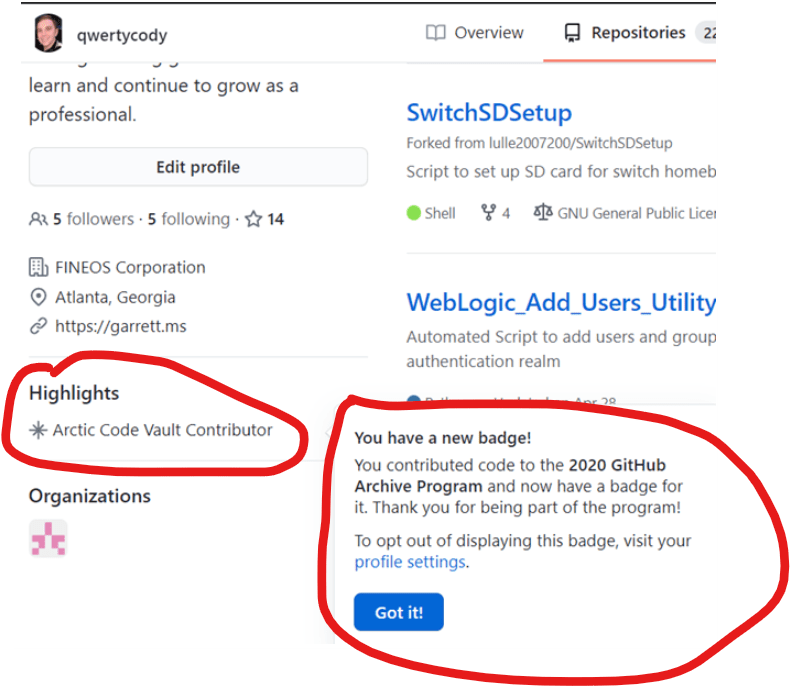
My Code Ended Up in the GitHub Arctic 1000 Year Archive!

My code and any small insignificant commits are going to outlive me!

For those of you that don’t know what this initiative was here is a brief overview… https://archiveprogram.github.com/faq/

What public repositories are archived in the Arctic Code Vault?

On February 2, 2020 we took a snapshot of all of GitHub’s public repositories that have been active within recent months. The archive will include every repo with any commits between the announcement at GitHub Universe on November 13, 2019 and February 2, 2020, every repo with at least 1 star and any commits from the year before the snapshot (02/02/2019 – 02/02/2020), and every repo with at least 250 stars. Plus, gh-pages for any repository that meets the aforementioned criteria.

Manipulating Docker in Python (Pull Image, Create/Restart/Delete Container, Port Forwarding)

I wrote this up because I couldn’t find any relatively straight forward answers online that provide an example of consistent usage of Docker in Python.

The code does the following steps:

  1. Checks if the Container Exists:
    • Deletes the Container
    • Restarts the Container
  2. If Container doesn’t exist –
    • Pulls the Image down from Docker Central
    • Creates the Container with specified Port Mappings and Environment Variables
docker_container_name="test"
docker_image_name="tomcat:latest"

docker_internal_port=1234
docker_external_port=1234

deleteDockerContainerEveryTime = True
restartDockerContainerEveryTime = True

def createDockerContainer():
    #create the local instance
    import docker
    client = docker.from_env()

    currentContainers = client.containers.list(all=True)

    containerExists = False

    for container in currentContainers:
        if container.name == docker_container_name:
            if deleteDockerContainerEveryTime == True:
                container.stop()
                container.remove()
                break

            if restartDockerContainerEveryTime == True and deleteDockerContainerEveryTime == False:
                container.restart()
                containerExists = True
                break

            containerExists = True
            break

    if containerExists == False:
        docker_image=docker_image_name

        client.images.pull(docker_image)

        container = client.api.create_container(
                docker_image,
                detach=True, 
                ports=[docker_internal_port, docker_external_port],
                host_config=client.api.create_host_config(port_bindings={docker_internal_port: docker_external_port}, publish_all_ports=True),
                name=docker_container_name,
                environment={
                             'ENV_VARIABLE_1': 'VALUE1',
                             'ENV_VARIABLE_2': 'VALUE2',
                             'ENV_VARIABLE_3': 'VALUE3'
                            })

        currentContainers = client.containers.list(all=True)

        for container in currentContainers:
            if container.name == docker_container_name:
                container.start()
                break

createDockerContainer()

Making API Requests from Shell or Command Line

This article has been copied and reformatted from the below website:

https://hi.service-now.com/kb_view.do?sysparm_article=KB0690780

Description:

  • Scope of this article is to describe how to make a SOAP call to an instance using the CURL command. This will help troubleshooting customer related issues when using the SOAP API.

Step 1:

  • Create the SOAP Envelope that contains the request that has to be sent
  • Note: The soap request parameters depend on the parameters that the WSDL expose.
<soapenv:Envelope xmlns:soapenv="http://schemas.xmlsoap.org/soap/envelope/" xmlns:inc="http://www.service-now.com/incident">
   <soapenv:Header/>
   <soapenv:Body>
      <inc:get>
         <sys_id><enter_sys_ID_of_record_to_retrieve</sys_id>
         </inc:get>
   </soapenv:Body>
</soapenv:Envelope>
  • Save it in a file as .xml (example test.xml)

Step 2:

  • Create the CURL command that you will input in the terminal.
    • curl –username:password –header “Content-Type: text/xml;charset=UTF-8” –header “SOAPAction: ACTION_YOU_WANT_TO_CALL” –data @FILE_NAME URL_OF_THE_SOAP_WEB_SERVICE_ENDPOINT
  • Example 1 – If you are consuming the WSDL from an Instance
  • Example 2 – If you are consuming the WSDL from a Node
  • Execute the command in Terminal or command prompt.

Troubleshooting – Tips

  • If ever you see that you are not receiving the expected output, then add the verbose parameter to the curl command and this shall give you more information.
  • Example of the curl command with verbose:

Troubleshooting – Possible Error 1

  • Error – The file containing the request is not readable
<SOAP-ENV:Envelope xmlns:SOAP-ENV="http://schemas.xmlsoap.org/soap/envelope/">
<SOAP-ENV:Header/>
<SOAP-ENV:Body>
<SOAP-ENV:Fault>
<faultcode>SOAP-ENV:Server</faultcode>
<faultstring>Unable to parse SOAP document</faultstring>
<detail>Error completing SOAP request</detail>
</SOAP-ENV:Fault>
</SOAP-ENV:Body>
</SOAP-ENV:Envelope>
  • Solution – Check the content and format of the file that contains the SOAP Request

Troubleshooting – Possible Error 2:

  • Error – The credential of the user specified is wrong or user is not authorized to access the WSDL
< HTTP/1.1 401 Unauthorized
< Set-Cookie: JSESSIONID=5C48D05E518DC37DA6502440F2FD8361; Path=/; HttpOnly;Secure
* Authentication problem. Ignoring this.
  • Solution : Check the user credential and if there is any ACL blocking the user from accessing the record

Troubleshooting – Possible Error 3:

  • Error – The WSDL is incorrect/wrong
* Could not resolve host: <URL_OF_THE_SOAP_WEB_SERVICE_ENDPOINT>
* Closing connection 0
curl: (6) Could not resolve host: URL_OF_THE_SOAP_WEB_SERVICE_ENDPOINT
  • Solution: Check if the correct URL is specified in the curl command.

Meeting Reminder Blackout

If you follow this blog you may remember a post a long while back about my “Meeting Reminder Ball” that furiously bounces around the screen.

Well, you may find me crazy but I’ve ironically become numb to it and straight up instinctively close it every time it comes up, effectively ignoring that I may have a meeting because I’m so focused on what I am doing.

BUT NO MORE!

I’ve created a new monster called Meeting Reminder Blackout.

Same process per usual with the Visual Basic Shell call, we launch a C# executable that is pre-written/compiled in Visual Studio and called by Outlook on the Meeting Reminder Event.

Check out the project and installation instructions at my GitHub Repository below:

https://github.com/qwertycody/Meeting_Reminder_Blackout